
Guide · For residents
How to order on Bhojo
From your first tap to collecting your food downstairs. About two minutes the first time, seconds after that.
Screens from the Bhojo app, shown with sample kitchens and neighbours.
- Step 1
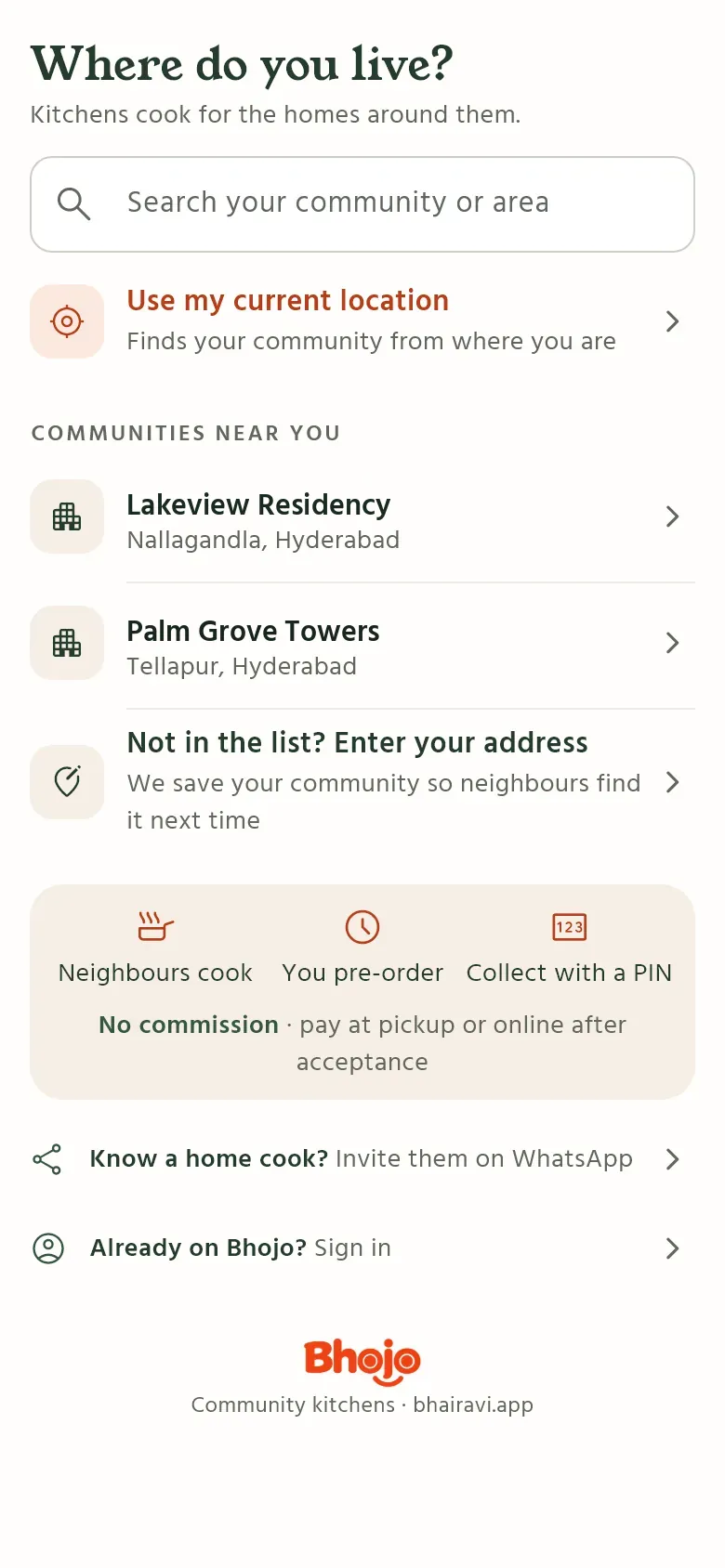
Tell Bhojo where you live
Open the Bhojo app or bhojo.app/app. Search for your community, or tap Use my current location.
Not in the list? Enter your address — your community is added so neighbours can find it next time.
- Step 2
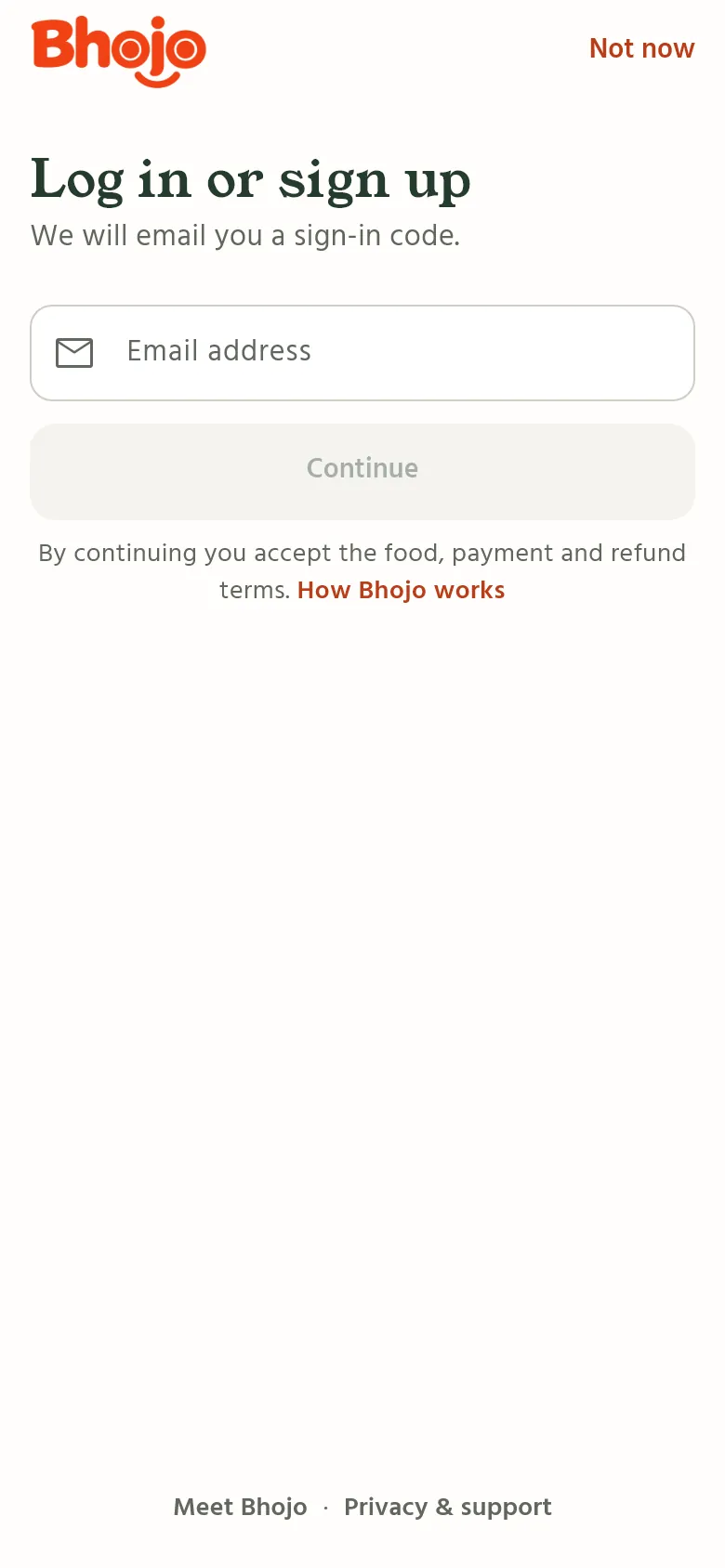
Sign in once
Use Google, your email (we send a code) or your mobile number. You stay signed in on that phone — no code for every order.
You can look around before signing in. You'll be asked to sign in when you place your first order.
- Step 3
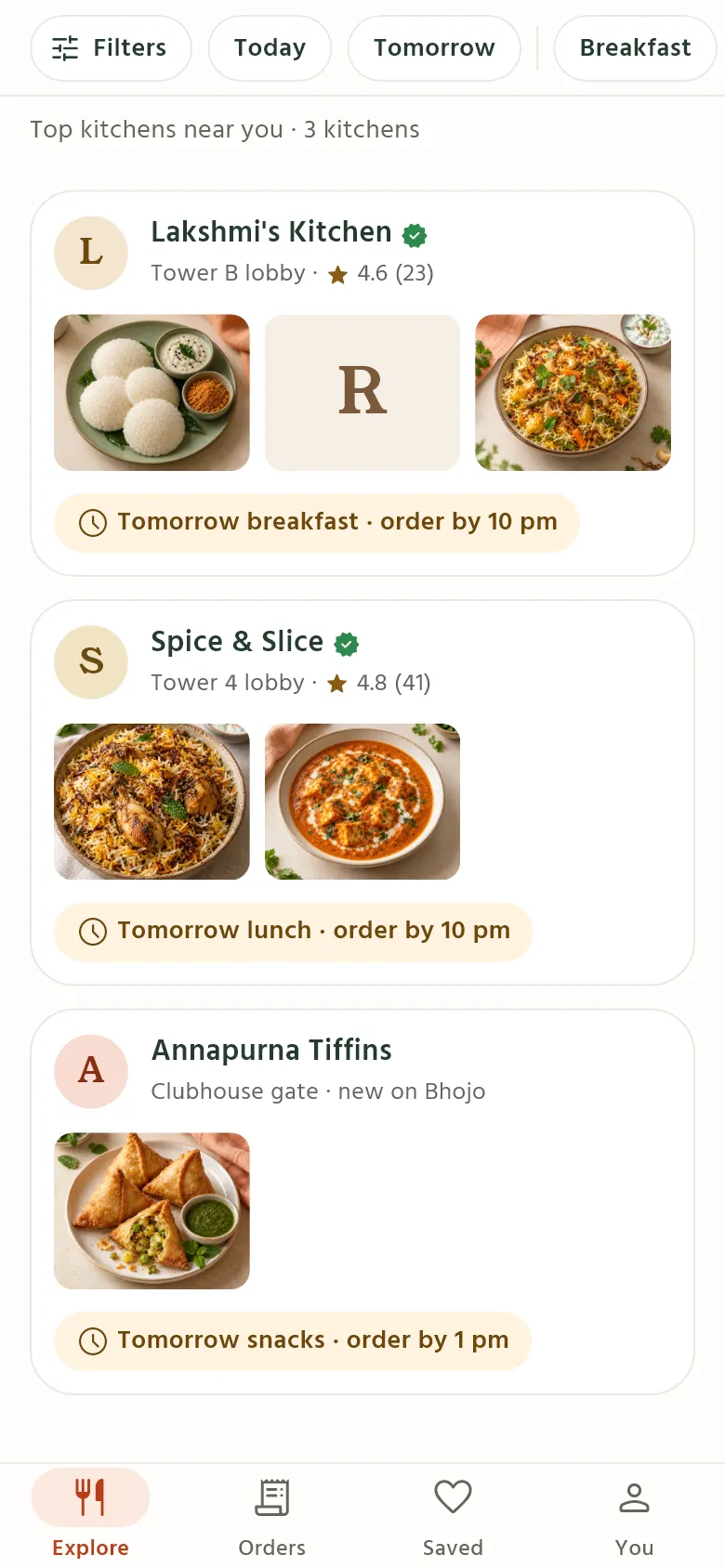
Browse what neighbours are cooking
Explore shows today’s and tomorrow’s dishes from kitchens near you. Each card shows the price, the portion and the time to order by.
Use Veg, Today, Tomorrow or the search bar to find exactly what you want.
- Step 4
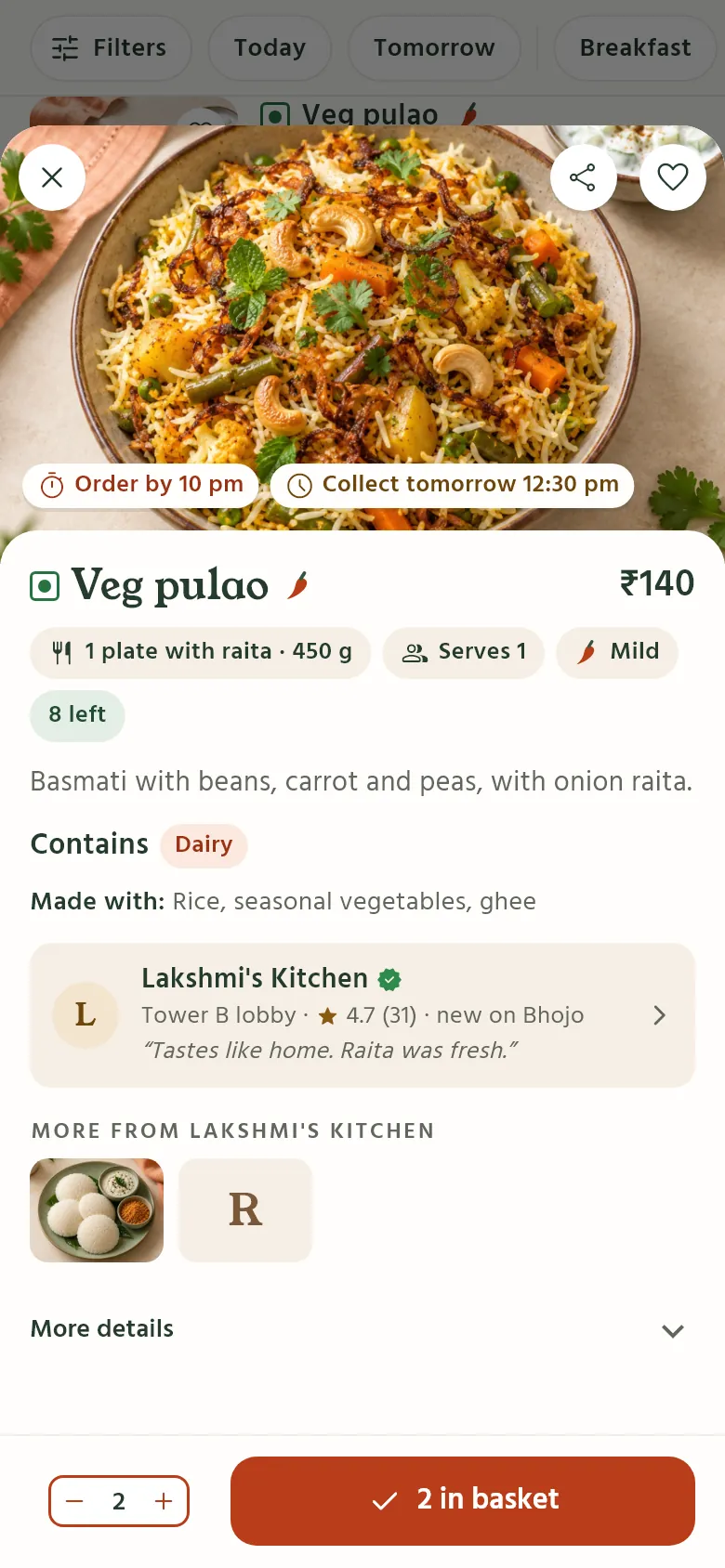
Check the dish and the kitchen
Every dish shows the portion (for example 1 plate with raita · 450 g), how many it serves, spice level, allergens and how many are left. Tap the kitchen to see its rating, reviews and where you collect.
A green tick next to a kitchen marks a verified cook.
- Step 5
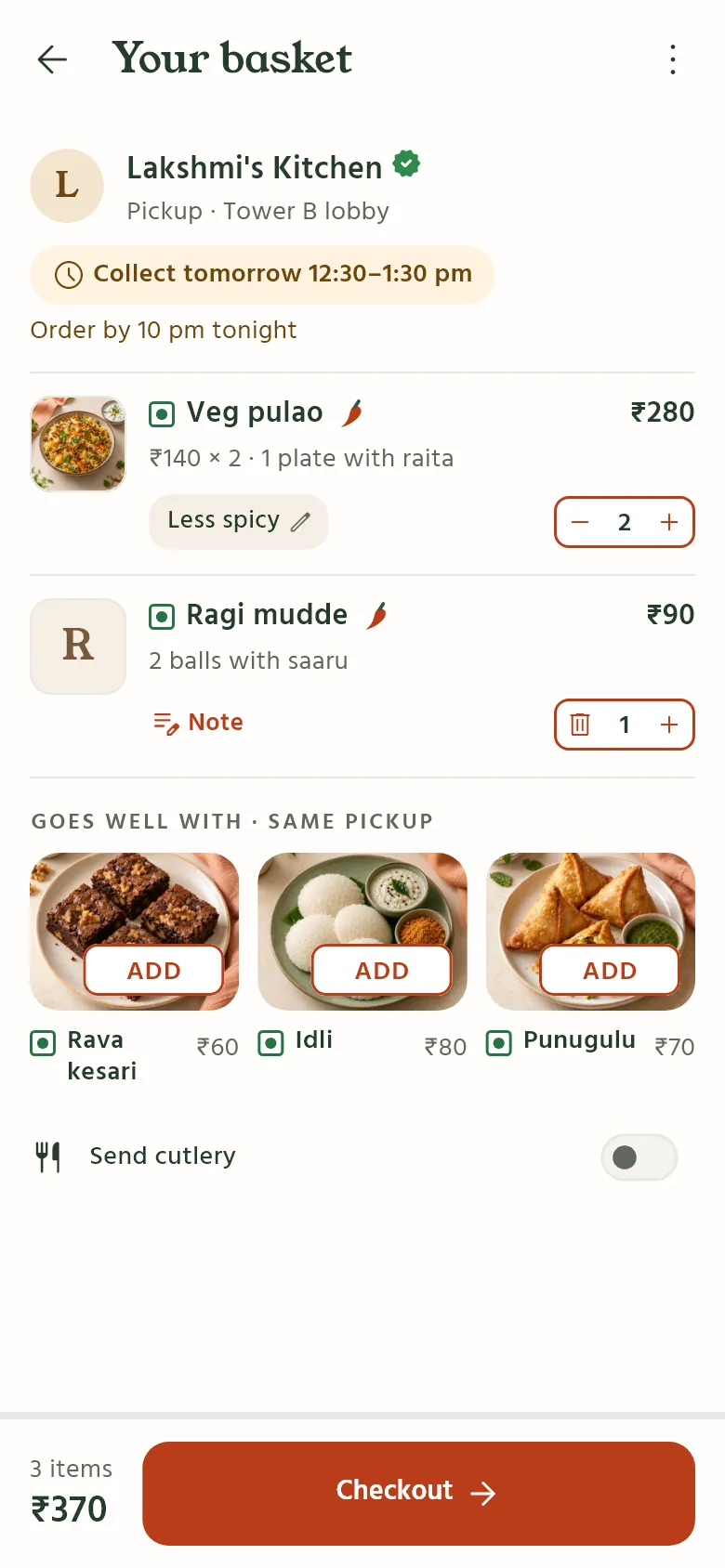
Review your basket
Change quantities, add a note like less spicy, and see the collection time. A basket holds dishes from one kitchen and one pickup time.
- Step 6
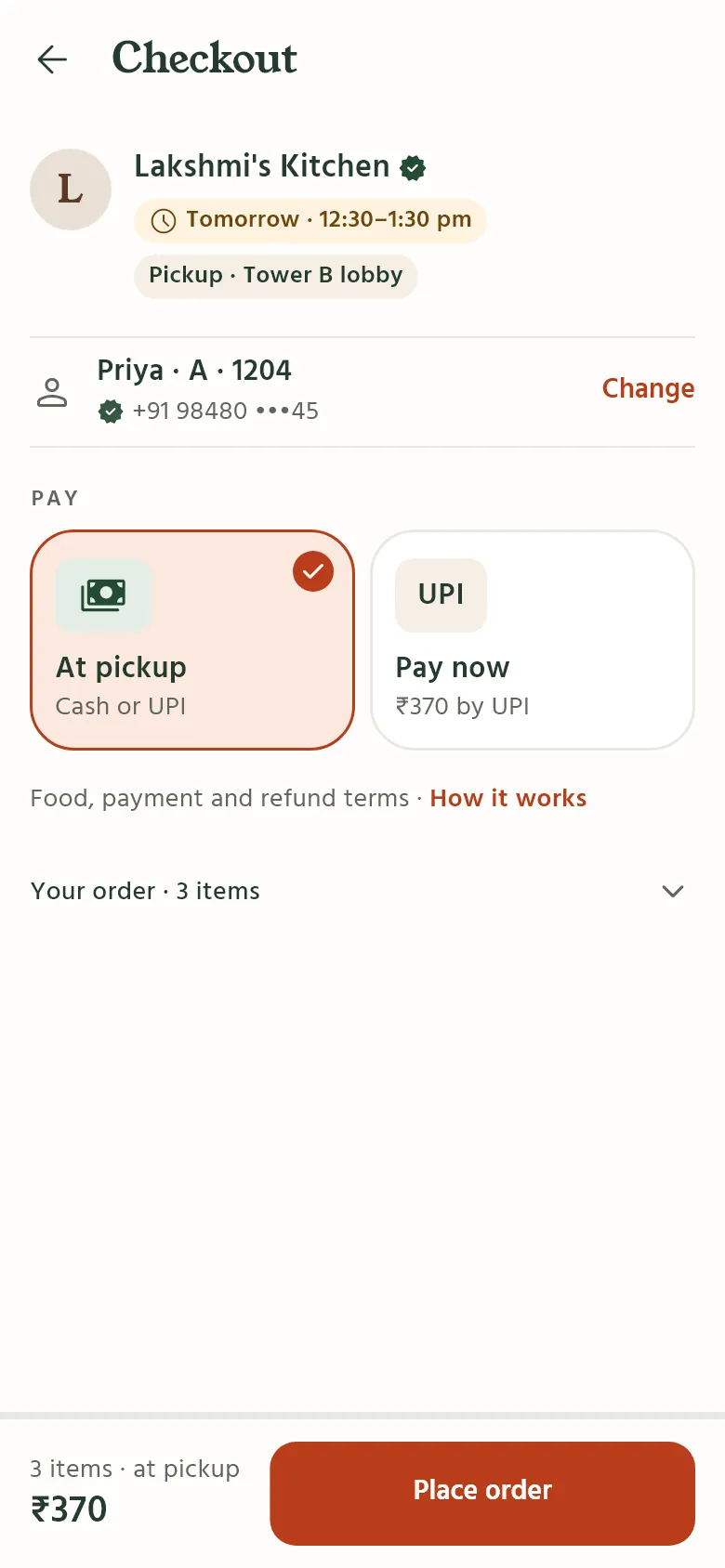
Choose how to pay and place the order
Pick At pickup (cash or UPI to the cook) or Pay now by UPI in Bhojo. Then tap Place order.
Online payments go through Razorpay. Bhojo never sees your UPI PIN.
- Step 7
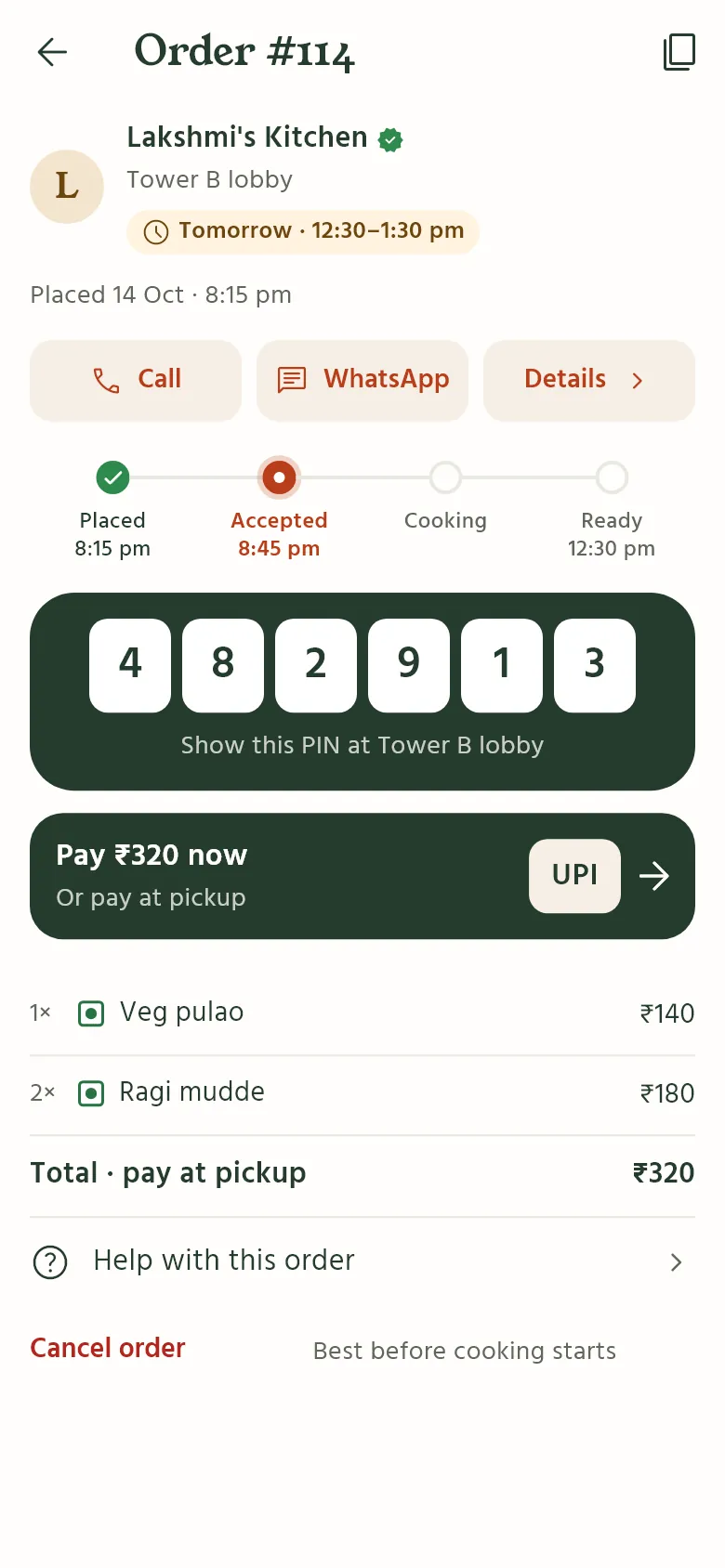
The cook accepts your order
Your order goes to the cook, who accepts it before cooking. You’ll get a notification and a handover PIN.
You can call or WhatsApp the kitchen from the order. If the cook can’t take it, the order closes — and if you paid online, you’re owed the full amount: contact us with your order number and we refund it.
- Step 8
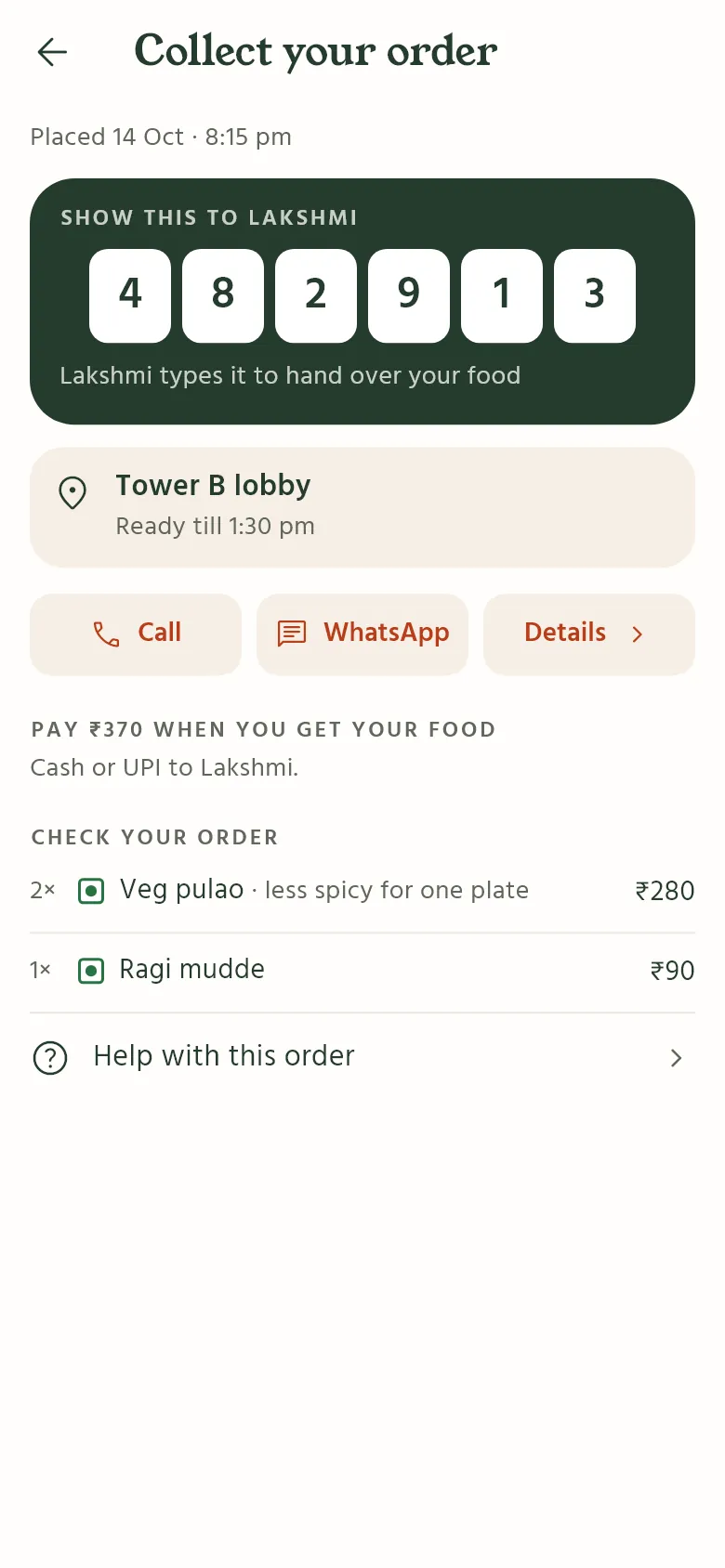
Collect and share your PIN
At pickup time, go to the kitchen’s collection point — often the cook’s home or the tower lobby. Check your food, then tell the cook your PIN. That confirms the handover.
Share your PIN only after you have your food.
- Step 9
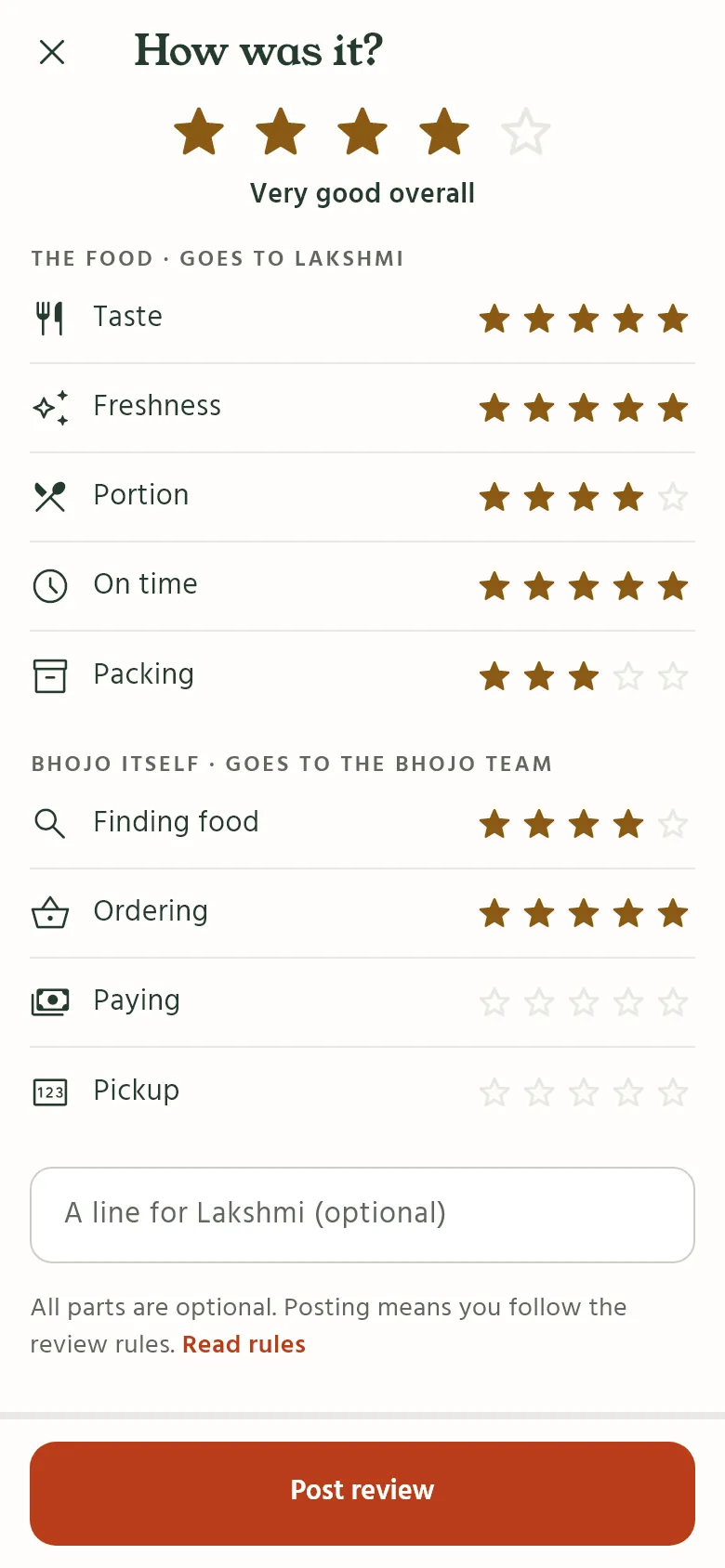
Say how it was
Rate taste, freshness, portion, timing and packing. It takes ten seconds and helps your neighbour cook better — and helps others choose.
Changed your mind?
Cancel in the app before the cook accepts. After that, ask the cook — they may already be cooking. Refund policy
Something wrong with the food?
Tell us within 24 hours from the order (Help with this order) or at hello@bhairavi.app, with a photo if you can.
Running late?
Call or WhatsApp the cook from your order. Each kitchen shows how long it keeps food ready.
Bhojo on your phone or in your browser
Hungry? Your neighbours are cooking.
One Bhojo account works in the Android app and on the website. Your orders, kitchen and basket follow you.
Android app
Free on Google Play. Alerts when your food is ready and when new menus open.

No download needed
Order or run your kitchen from any browser, including iPhone.
Open Bhojo on the web